From the site to a hologram in your world, in eight steps.
Eight steps
STEP 1
Make your pack
On the OliMatica page, sign in and add builds to your pack: ours, the community's, or your own structures. Choose its start item, then Make my pack: you get one .mcpack file.
STEP 2
Open it
Open the .mcpack file: Minecraft starts and adds OliMatica to its resource packs. On a phone, open it from your downloads, with Minecraft.
STEP 3
Turn it on
In Minecraft: Settings, Global Resources, then activate it (or only in one world: the world's Resource Packs). Turned on in Global Resources, it works in every world, Realm and server.
STEP 4
Place an armor stand
Where the build should go. Facing the armor stand, the build appears behind it and to your right, its best side towards you.
A paper to the armor stand: the projector, then the hologramSTEP 5
Give it the start item
Hold the pack's start item (a paper, unless you chose another one) and use the armor stand: it takes it in its hand and becomes a projector. The hologram rises, layer by layer.
The OliMatica button, next to the settings button of the chatSTEP 6
Open the menu
Open the chat: the OliMatica button is next to the settings button. Touch screens also have an OliMatica button at the top of the screen; on PC, the arrow keys go through the layers and the steps.
The bar at the top of touch screens: a layer upSTEP 7
Build
Go to the first layer (the Layers tab, or the up arrow) and place the bright blocks. The board over the projector says what each layer needs.
The checker on: the board counts what is left, red marks on the chimneySTEP 8
Check
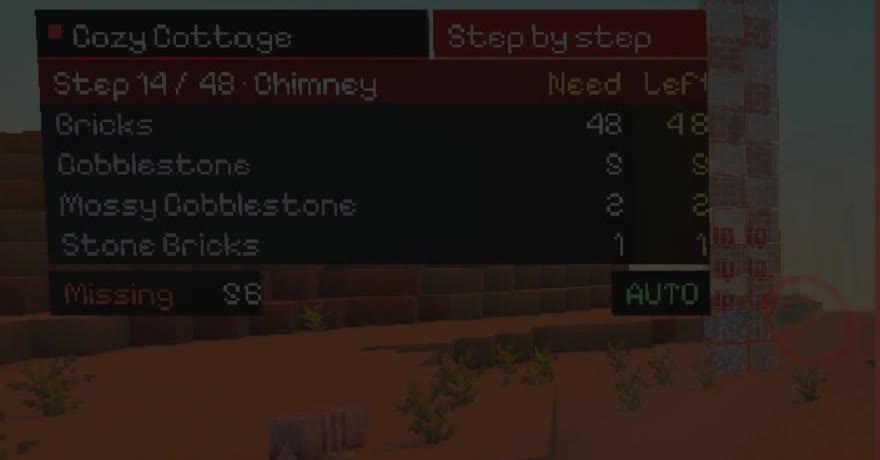
Turn the checker on (the Check tab): red marks show what is missing or wrong, orange what is in the way. A layer finished: a sound, and the next layer comes.
Then
Sneak and use the projector (empty hand): the next build of the pack.